What Is Split Tunneling? How It Works and When to Use It (2026)
Split tunneling lets you send some apps, sites or IPs through your VPN while the rest use your normal connection. Here’s how it works, the types, when to use it, and the privacy trade-off.

You turn on your VPN, and suddenly your printer disappears, your banking app throws a security warning, and your game ping jumps. Turn the VPN off, and everything works again, but now nothing is protected.
Split tunneling is the middle ground. It lets you choose which apps, sites or IP addresses go through the VPN and which use your normal connection.
It’s genuinely useful. It also quietly weakens the privacy you turned the VPN on for, if you set it up carelessly. Here’s how split tunneling works, the different types, when it makes sense, and how to use it without leaking more than you meant to.
- Split tunneling sends some traffic through your VPN and lets the rest use your normal connection.
- You can split by app, by IP range or by website, in exclude mode or include mode.
- It fixes local devices, banking apps, gaming lag and overloaded work VPNs.
- Excluded traffic shows your real IP, and exclusions can spread to apps you didn’t pick.
- Use exclude mode, keep the list short, and test both sides after setup.
What Is Split Tunneling?
Split tunneling is a VPN feature that sends some of your traffic through the encrypted VPN tunnel and lets the rest go straight to the internet over your regular connection.
The idea comes from corporate networking. NIST’s glossary, quoting its SSL VPN guide (SP 800-113), describes it as routing organization-specific traffic through the VPN tunnel while other traffic goes through the remote user’s default gateway. In other words, work traffic goes to the office, and everything else goes out the normal way.
Consumer VPNs flipped the idea around. Instead of “only work traffic goes in”, most apps let you say “everything goes in, except these apps”. If you need a refresher on the tunnel itself, our guide to what a VPN tunnel is covers the basics.
How Split Tunneling Works
Without split tunneling, a VPN runs as a full tunnel. Microsoft’s documentation for Windows calls this force tunnel: the VPN adds default routes such as 0.0.0.0/0 with a better priority than your other network adapters, so every packet heads into the tunnel.
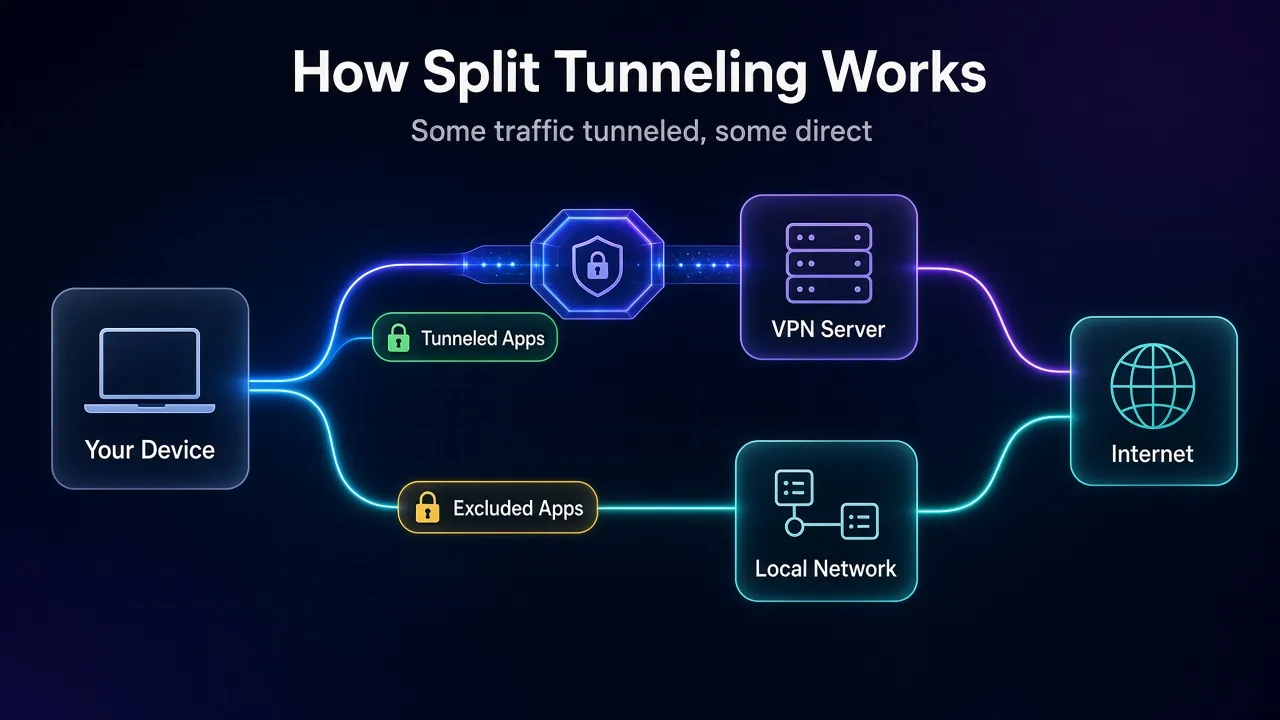
Split tunneling changes those rules. The VPN client tells your operating system which traffic belongs in the tunnel and which doesn’t, using one of two signals:
- Where the traffic is going: a destination IP address or range. Microsoft’s VPN routing documentation describes a route list for the tunnel, plus exclusion routes that skip it.
- Which app sent it: a per-app rule. Android’s VPN API, for example, lets a VPN app allow or disallow individual apps by package name.
Everything that matches the “tunnel” rules gets encrypted and sent to the VPN server. Everything else leaves through your router with your real IP address, exactly as if the VPN were off.
In plain English: your device keeps two roads open at once, and split tunneling decides which road each connection takes.
The Types of Split Tunneling
VPN apps use different names for the same few options. Once you know the four types, every settings screen makes sense.
1App-Based Split Tunneling
You pick apps, and the rule applies to everything those apps send. This is what most consumer VPNs offer on Windows and Android. It’s the easiest to set up, because you don’t need to know a single IP address.
2Route-Based (IP) Split Tunneling
You list IP addresses or ranges instead of apps. Proton VPN’s Windows and Android apps accept single IPv4 or IPv6 addresses and whole ranges in CIDR notation, like 46.36.198.0/24.
This is how most business VPNs work, and how WireGuard handles it under the hood. The wg-quick manual says it builds routes from each peer’s AllowedIPs, and only takes over your default gateway when that list includes 0.0.0.0/0 or ::/0.
3Domain-Based (Browser) Split Tunneling
Some browser extensions split by website. Proton’s extension, for instance, lets you add domains to include or exclude, with an option to cover their subdomains. It only affects that browser, not the rest of your device.
4Exclude Mode vs Include Mode
This is the setting that matters most, and it applies to apps, IPs and domains alike.
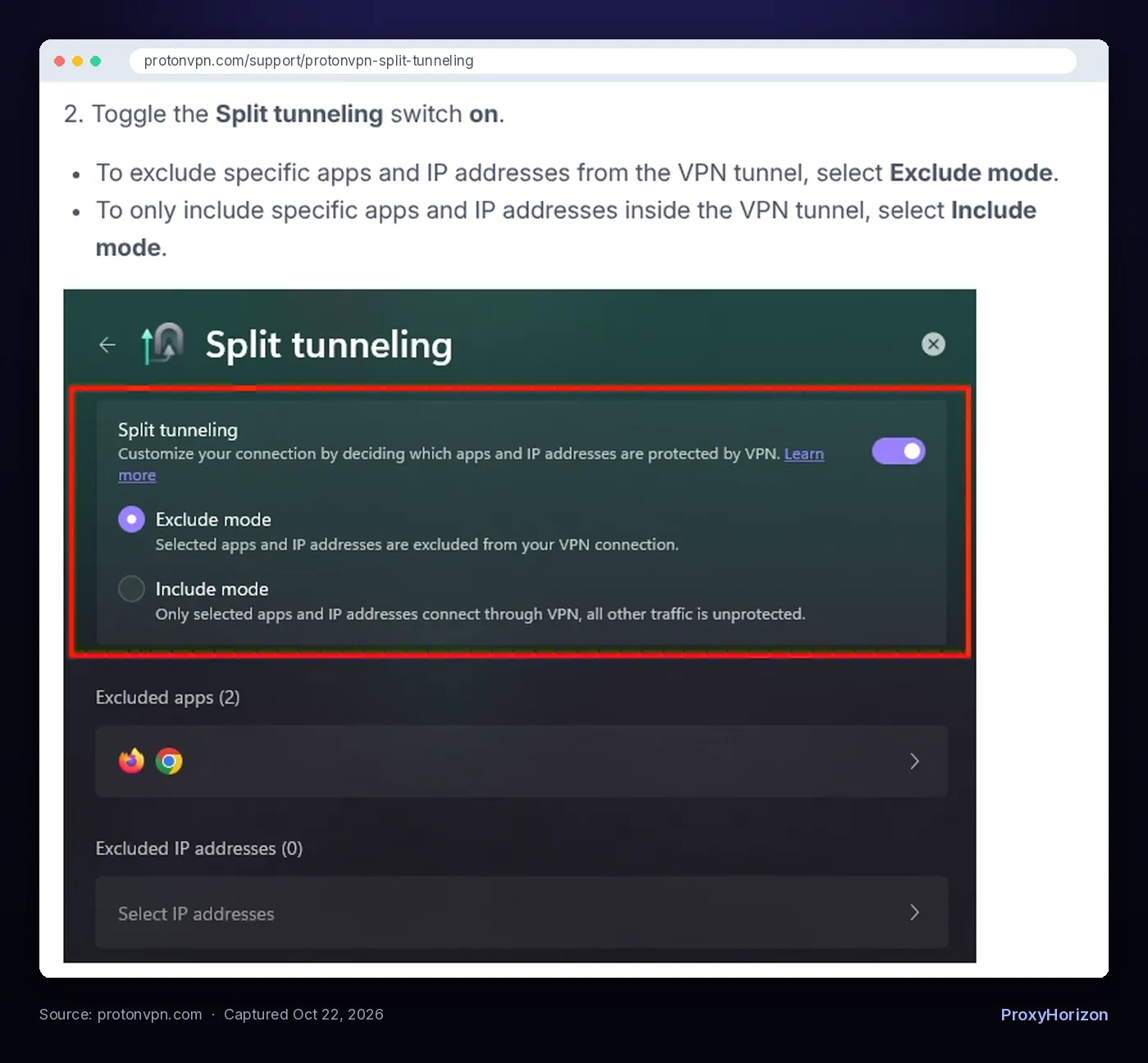
- Exclude mode: everything goes through the VPN except the items you list. Safer by default, because any new app you install is protected automatically.
- Include mode (sometimes called inverse split tunneling): nothing goes through the VPN except the items you list. Proton describes it bluntly in its Windows app: all other traffic is unprotected.
Not every provider offers both. Mullvad’s split tunneling guide (updated October 20, 2026) says it has no plans to add inverse split tunneling, because it believes a VPN should be used by default and not by exception. That’s a fair rule of thumb for anyone setting this up.
When Should You Use Split Tunneling?
Split tunneling earns its place when the VPN is getting in the way of something that doesn’t need protecting. These are the common cases.
1Local Devices on Your Home Network
Printers, network drives, smart TVs and casting often stop working on a full tunnel, because your traffic is being sent to a server in another city instead of across the room. Excluding your local network range, or the app that talks to the device, usually brings them back.
2Banking and Sites That Block VPNs
Some banks, payment apps and streaming services block known VPN addresses or ask for extra verification. Mullvad notes that excluding an app lets you reach sites that block VPN services, because the app uses your own IP address. Our guide on whether a VPN hides your location explains what those sites check.
3Gaming and Video Calls
Latency-sensitive traffic can suffer when it takes a detour through a distant VPN server. Excluding a game client or a calling app can lower ping. One catch: Mullvad says games with anti-cheat software, and voice chat in some games, can be hard or impossible to exclude on Windows. If you want to keep games inside the VPN instead, our roundup of the best VPNs for gaming covers low-latency options.
4Streaming in Two Regions at Once
Want a foreign streaming catalog in one browser and local services in another? Exclude one browser and leave the other in the tunnel. It’s one of the simplest everyday uses.
5Work Apps and Remote Teams
This is the original use case. Microsoft’s guide to VPN split tunneling for Microsoft 365 recommends a forced tunnel with a few trusted exceptions: send a small set of Microsoft 365 endpoints, including Teams media, straight to the internet. Microsoft says that small group accounts for around 70-80% of Microsoft 365 traffic volume, so moving it off the VPN takes real pressure off corporate VPN servers.
If you’re choosing a VPN for a distributed team, our list of the best VPNs for remote teams compares business features like this.
Split Tunneling Security Risks and the Privacy Trade-Off
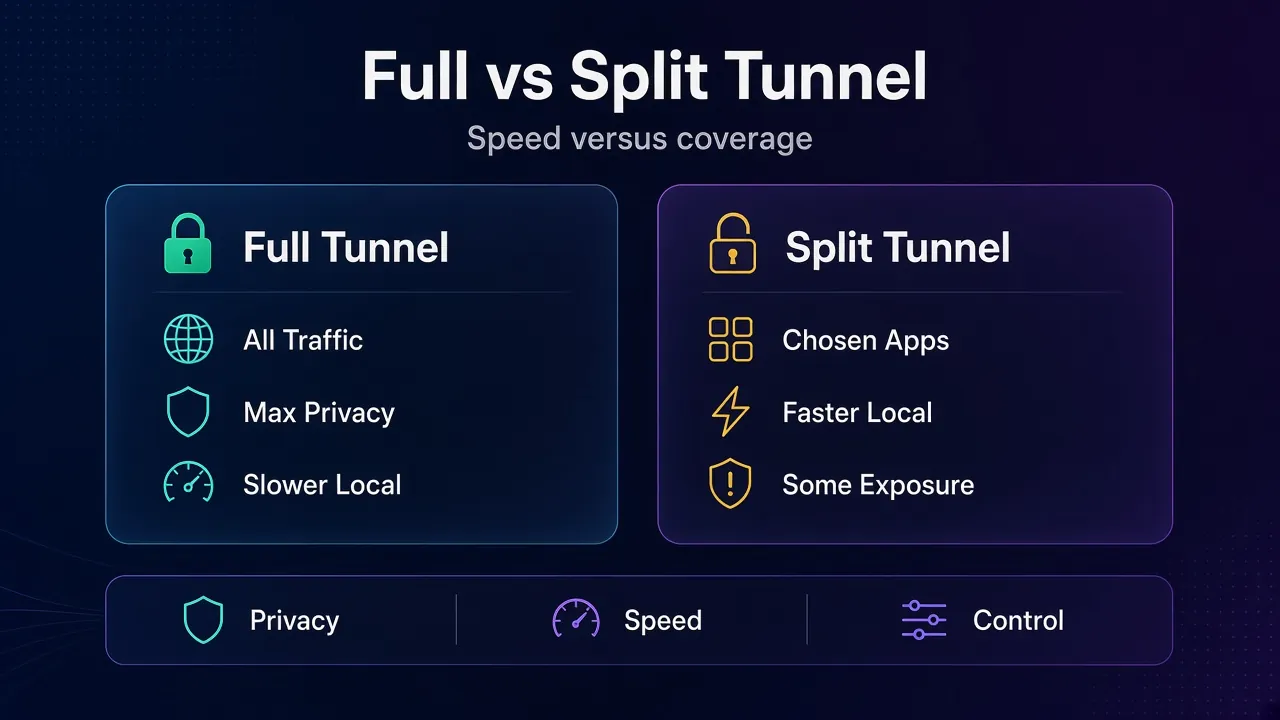
Here’s the part VPN marketing skips. Every connection you exclude is a connection your VPN no longer protects.
1Excluded Traffic Shows Your Real IP
Mullvad’s guide puts it in a warning box: traffic in excluded apps doesn’t go through the VPN, and your own IP address is exposed. Your internet provider can also see that traffic as normal. If an excluded app talks to the same service as a tunneled one, that service can link both addresses to you.
2Apps Can Inherit an Exclusion by Accident
Exclusions don’t always stay where you put them. Mullvad lists real examples on Windows: an installer started from an excluded browser runs outside the VPN, and clicking a magnet link in an excluded Chrome can launch qBittorrent outside the tunnel too, leaking your IP even if the torrent client is bound to the VPN. Proton notes that on macOS, excluding one app built on Apple’s WebKit engine can affect other WebKit apps, including Safari.
3Kill Switch Conflicts
A VPN kill switch blocks traffic when the tunnel drops. Proton says that on most platforms its kill switch can’t run alongside split tunneling, so you have to choose. Windows is the exception in its apps. On Android, Mullvad notes that excluded apps stop working if you’ve enabled the system’s “Block connections without VPN” setting.
4DNS Can Go Either Way
Where your excluded apps look up domain names depends on the provider. Mullvad says excluded apps still use the DNS server on the Mullvad server you’re connected to. Other setups send those lookups to your provider. Either way, it’s worth knowing, and our guide to DNS leaks shows how to test what’s really happening.
5Business Networks Have Extra Exposure
For companies, a laptop that’s on the corporate network and the open internet at the same time is a bridge. That’s why Microsoft frames split tunneling as a small list of trusted exceptions, not a free-for-all.
How to Set Up Split Tunneling Safely
The exact menus differ by app, but the safe process is the same everywhere.
- Find the setting. It’s usually called Split tunneling. Some providers give it a brand name, so check their help pages if you can’t spot it.
- Choose exclude mode. Start with everything protected and carve out only what breaks.
- Exclude the smallest thing possible. A single app or an IP range beats a whole browser.
- Reconnect and restart the apps. Proton’s guide says changes apply after you reconnect, and its Linux app needs excluded or included apps restarted after each connection.
- Test both sides. Open an IP checker in an excluded app and a tunneled one. Mullvad suggests excluding a browser and visiting its connection check, which should say you’re not using the VPN.
- Launch excluded apps carefully. Start installers and other apps from your desktop or file manager, not from inside an excluded app.
1Platform Limits to Know
| Platform | What to expect |
|---|---|
| Windows | Most complete support: app and IP rules, both modes in some apps. Windows Store apps can’t be excluded in Mullvad. |
| Android | Per-app rules are built into the system VPN API, so most VPN apps support them. |
| macOS | Often limited. Proton calls its version experimental, app exclusion only, WireGuard and Stealth protocols only. |
| Linux | Supported by some apps. Mullvad offers a mullvad-exclude command for launching excluded apps. |
| iPhone and iPad | Usually unavailable. Mullvad says it isn’t currently possible in its iOS app. |
| Browser extension | Domain-based rules that affect only that browser. |
Split tunneling works the same way whichever protocol you pick, but some apps only support it on certain protocols. Our explainer on how VPN protocols work covers WireGuard, OpenVPN and IKEv2.
Split Tunneling vs Full Tunnel: Which Should You Use?
| Full tunnel | Split tunnel | |
|---|---|---|
| What goes through the VPN | All traffic | Only what your rules allow |
| Privacy | Highest | Lower for excluded traffic |
| Local devices | Often break | Work normally if excluded |
| Speed for excluded apps | Limited by the VPN server | Your normal connection |
| Setup effort | None | Some, plus testing |
| Best for | Public Wi-Fi, travel, sensitive browsing | Home use, gaming, streaming, work apps |
Our rule of thumb: stay on a full tunnel on public Wi-Fi or when privacy is the whole point. Use split tunneling at home, in exclude mode, for the two or three apps the VPN keeps breaking.
Comparing providers on features like this? Our VPN directory lists what each one supports.
Frequently Asked Questions
Use Split Tunneling as an Exception, Not the Default
Split tunneling solves real annoyances: broken printers, blocked banking apps, laggy games and overloaded work VPNs. It does that by letting some traffic skip the tunnel entirely.
That traffic carries your real IP and is visible to your provider, and exclusions can spread to apps you didn’t pick. Exclude mode, a short list and a quick test on both sides keep the trade-off small.
Our take: start with everything in the tunnel, exclude only what breaks, and check your setup after every app or VPN update. If you’re still picking a VPN, our roundup of the best VPN services for privacy is a good place to start.
Keep Reading
More articles you might enjoy