What Is a WebRTC Leak? How to Stop It in Any Browser (2026)
A WebRTC leak lets websites see your real IP even with a VPN or proxy on. Here’s why it happens, how to test for it in two minutes, and the exact settings that stop it in Chrome, Edge, Firefox, Brave and Safari.
You connect your VPN, check your IP, and see a server in another country. Job done. Then a test page shows your real home IP sitting right underneath it.
That’s a WebRTC leak. Your encrypted tunnel didn’t break. Your browser simply found another way to tell a website who you are.
This guide explains what WebRTC is, why it can expose your IP behind a VPN or proxy, how to test for a leak in two minutes, and how to stop it in Chrome, Edge, Firefox, Brave and Safari.
- A WebRTC leak is when your browser reveals an IP you meant to hide, through the feature that powers in-browser calls.
- Full-tunnel VPNs usually prevent it. Split tunneling, VPN extensions and app-level proxies are where leaks happen.
- Browsers already mask private IPs with .local names, but your public IP can still slip out.
- Test with a WebRTC leak page, then set Brave’s policy, Firefox’s about:config prefs or Google’s Network Limiter in Chrome.
What Is a WebRTC Leak?
WebRTC (Web Real-Time Communication) is the browser feature behind video calls, voice chat and file sharing that run inside a web page, with no plugin. Google Meet, Discord in the browser and many support chat widgets use it.
To connect two people directly, WebRTC has to learn which IP addresses each device can be reached on. A WebRTC leak happens when the browser shares an address you meant to hide, such as your real public IP behind a VPN, or the private IP of your device on your home network.
The key point: this isn’t a bug in a single browser. It comes from how peer-to-peer connections work, and every major browser has had to add limits on top of it.
How Does WebRTC Expose Your IP Address?
WebRTC uses a process called ICE (Interactive Connectivity Establishment) to find the best route between two devices. The IETF’s RFC 8828, the standard on WebRTC IP handling, describes the problem plainly (checked October 21, 2026).
ICE gathers a list of “candidate” addresses using STUN servers, which tell your browser what public IP it appears to have, and TURN servers, which relay traffic when a direct route fails. These candidates are then handed to the web page so it can pass them to the other side.
That handoff is the leak. With a normal web request, a site only sees one IP: the one the request came from. With WebRTC, a page can read every candidate your browser collected.
RFC 8828 sorts the extra information into three cases:
- Split-tunnel VPNs. If your VPN only routes some traffic, WebRTC can discover both the VPN’s IP and the ISP address the VPN runs over. The RFC calls this the most significant concern, because many people use a VPN to stay anonymous.
- Private IPs behind your router. Local addresses such as 192.168.x.x don’t reveal your location, but they add to your browser fingerprint and can link a private window to a normal one on the same device.
- App-level proxies. If you set a proxy in your browser but your machine can still reach the internet directly, WebRTC’s STUN checks can skip the proxy and reveal your real public IP.
Does a VPN Stop WebRTC Leaks?
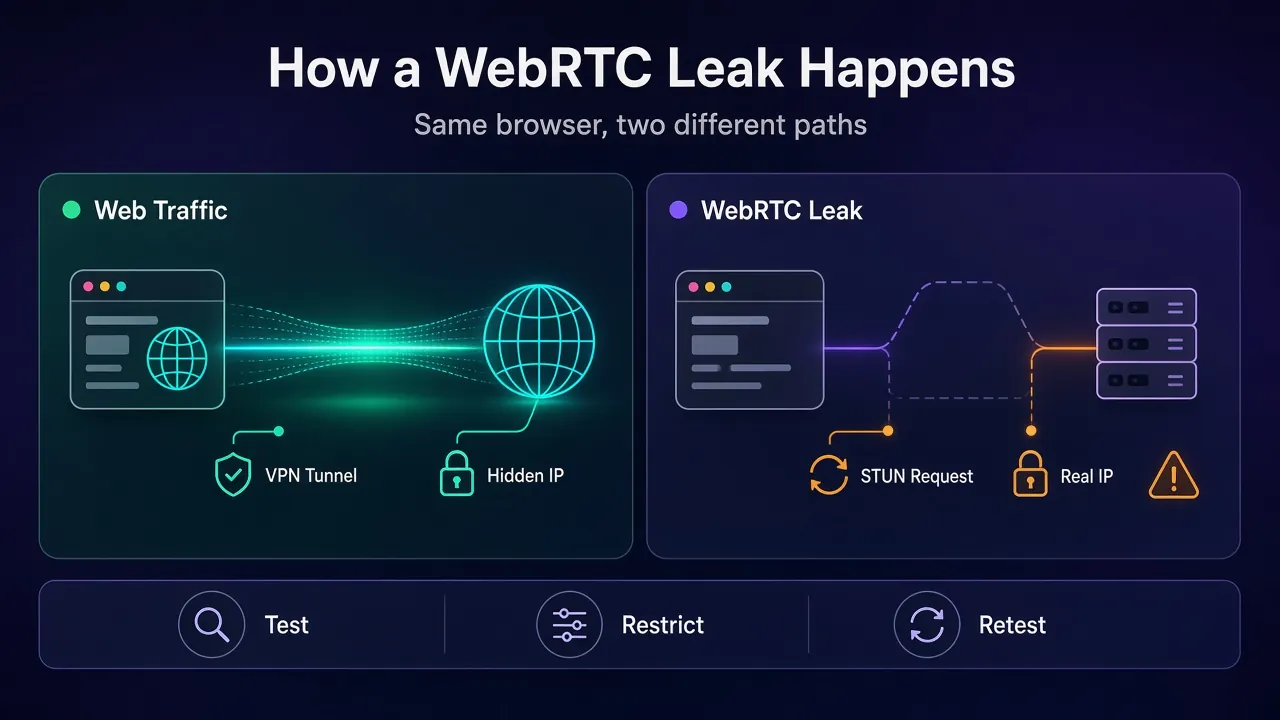
Usually, yes, if the VPN tunnels all of your traffic. RFC 8828’s first principle is that WebRTC should follow the same route as your normal web traffic by default. When everything goes through the tunnel, the STUN server just sees the VPN server’s IP, which is what you want.
Leaks show up in a few specific setups:
- Split tunneling is on, so the browser or its WebRTC traffic can use your regular connection.
- You use a browser-only VPN extension, which works like a proxy for page traffic and may not control WebRTC at all.
- A site has camera or microphone permission, which unlocks more address gathering in Chrome (more on that below).
- The VPN drops for a moment and your device falls back to its normal connection.
So a VPN app with full-device tunneling is the strongest baseline. If you want to understand what the tunnel actually covers, our guide to how a VPN tunnel works walks through it, and does a VPN hide your location covers the other ways your location can slip.
What About Proxies and Antidetect Browsers?
Proxies are where WebRTC causes the most surprises. Most proxies you set up in a browser are HTTP or SOCKS proxies, and they only see the traffic the browser sends to them.
RFC 8828 points out that HTTP proxies and most SOCKS proxies don’t support UDP, which is the transport WebRTC prefers. By default, WebRTC is not sent through a proxy at all, because media over a TCP proxy performs badly. The standard defines a stricter “force proxy” mode, but it has to be switched on.
For scraping and multi-account work, this matters a lot. A site can load a tiny script, gather WebRTC candidates and compare them to the IP your request arrived from. If they don’t match, your proxy is exposed.
That’s why antidetect browsers ship WebRTC controls. Most let you replace the WebRTC IP with your proxy IP or block it per profile. Our step-by-step guide on pairing proxies with an antidetect browser shows where those settings live and which mode to pick.
How Browsers Already Limit WebRTC Leaks
Older articles on this topic describe a free-for-all that no longer exists. Browsers have tightened things in two big steps.
Default route only, unless you grant camera or mic. Starting with Chrome 48, Google’s WebRTC release notes said only apps with microphone or camera permission could enumerate all network interfaces. Others get candidates from the default network path, so a VPN user would only expose the VPN’s addresses.
mDNS hides private IPs. Chrome then began masking private IPs with random hostnames ending in .local, rolling out fully with Chrome 76 in August 2019, according to the Chrome team’s announcement. WebKit, the engine behind Safari, switched mDNS candidates on by default in January 2019, per WebKit changeset 239936.
Two catches remain. Both protections relax for sites you’ve given camera or microphone access to. And mDNS hides your private address only. Your public IP from STUN is still visible, which is exactly the address that matters when a proxy or split tunnel doesn’t cover WebRTC.
How to Test for a WebRTC Leak
Testing takes two minutes, and you should do it any time you change your VPN, proxy or browser setup.
- Turn your VPN or proxy off and note your real public IP with our IP address checker.
- Turn the VPN or proxy back on and confirm your visible IP has changed.
- Open a WebRTC test page such as BrowserLeaks’ WebRTC test, or the official Trickle ICE sample from the WebRTC project.
- Look at the public addresses listed. On the Trickle ICE page, click Gather candidates and check the entries of type
srflx, which is the public IP a STUN server saw. - If your real IP from step 1 appears anywhere, you have a leak.
A .local hostname in the results is normal. That’s the mDNS mask doing its job, not a leak.
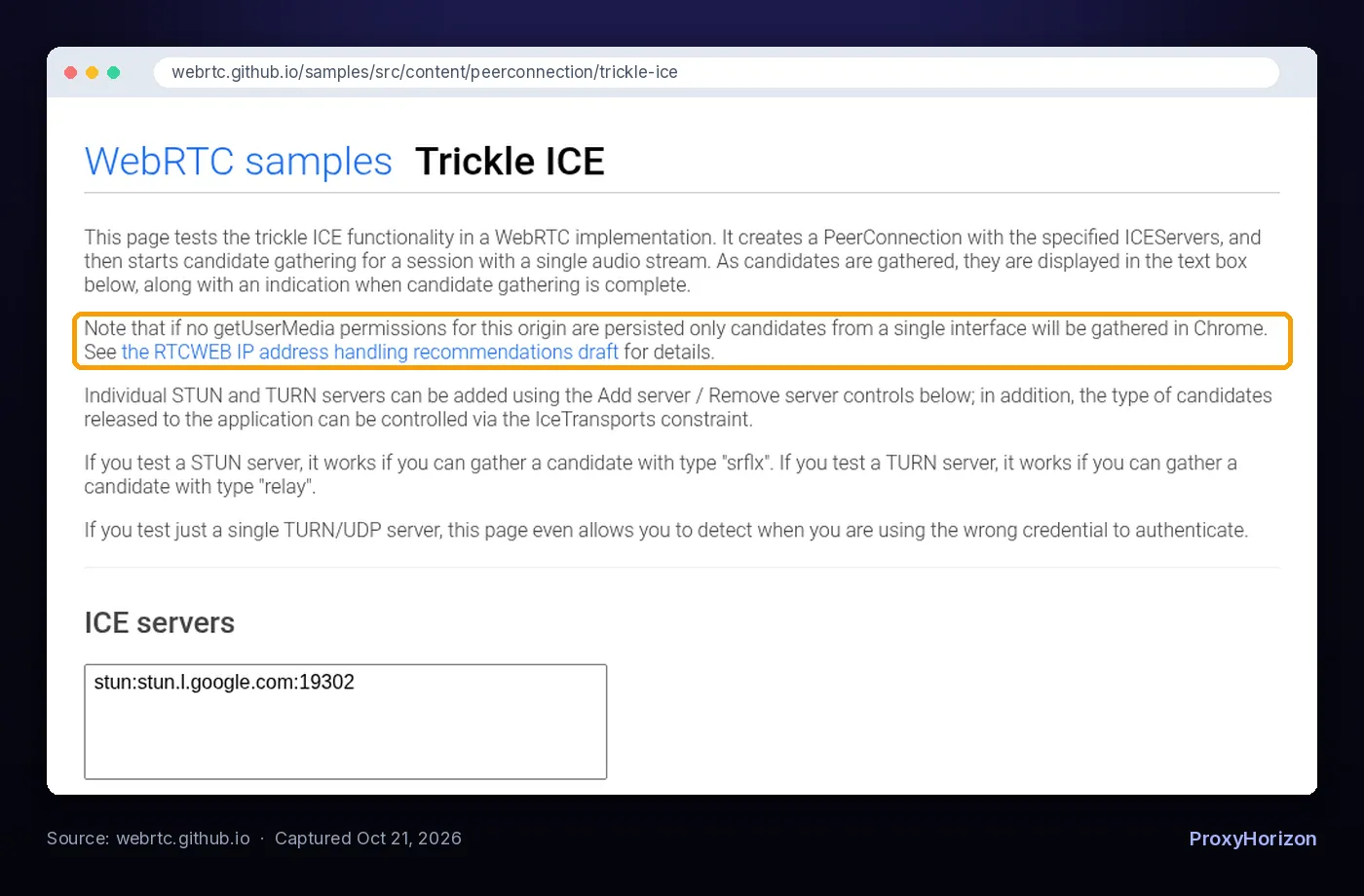
Run the test a second time with nothing else open. If you’ve ever granted the test site camera or microphone access, remove that permission first, since it changes what the browser will reveal.
How to Stop a WebRTC Leak in Any Browser
Pick the fix that matches your browser. Each one trades a little call quality for privacy, so only go as strict as you need.
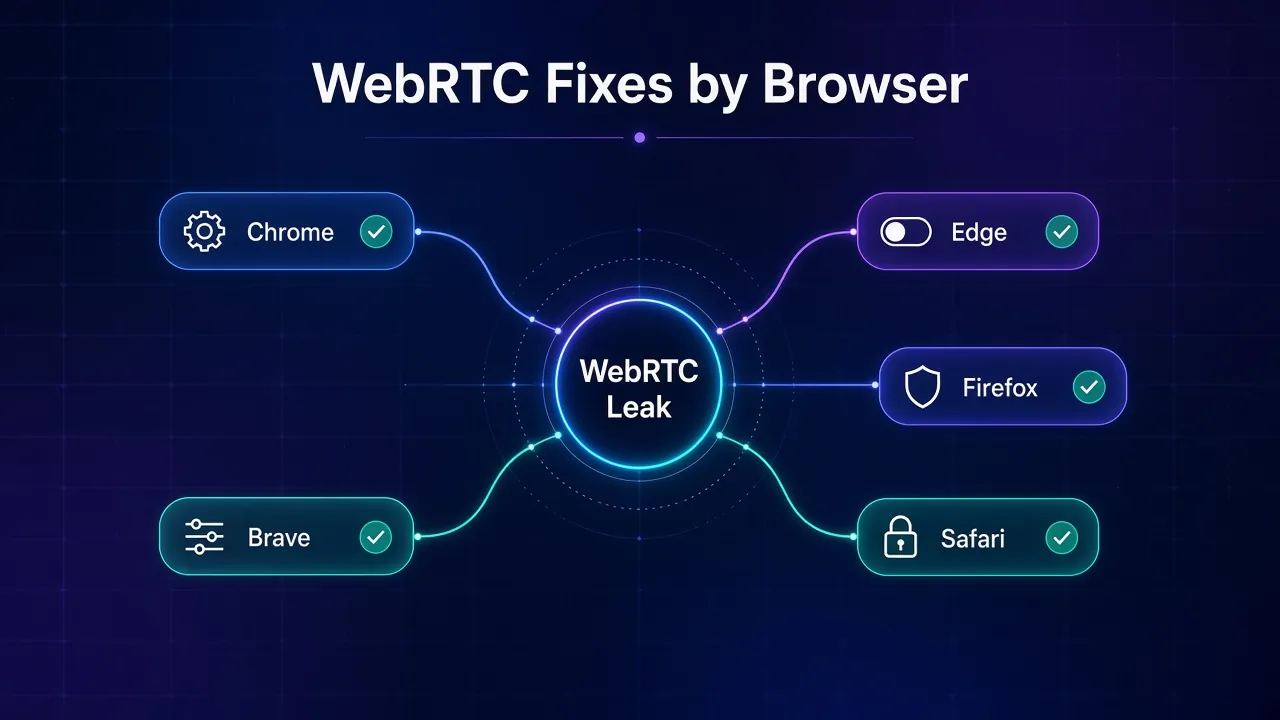
1Chrome
Chrome has no WebRTC switch in its normal settings. Google’s own fix is the WebRTC Network Limiter extension, published by Google on the Chrome Web Store.
It blocks private IPs and any public IP on an interface that isn’t used for web traffic, such as your ISP address when you browse through a VPN. Its Options page can also require WebRTC to go through your configured proxy, which in practice turns off UDP because most proxies can’t carry it.
Under the hood, the extension sets Chrome’s webRTCIPHandlingPolicy, documented in the chrome.privacy API. The values run from default_public_and_private_interfaces to default_public_interface_only to the strictest, disable_non_proxied_udp.
2Microsoft Edge
Edge is built on the same Chromium engine, so the same policy applies. Edge can install extensions from the Chrome Web Store, which lets you use the same WebRTC Network Limiter extension. Then run the leak test again to confirm it took effect.
3Firefox
Firefox gives you the most granular control through about:config. Mozilla’s WebRTC privacy page documents these preferences:
| Preference | Set to | What it does |
|---|---|---|
media.peerconnection.ice.default_address_only | true | Uses only the interface with the default route |
media.peerconnection.ice.no_host | true | Removes all local (private) addresses |
media.peerconnection.ice.relay_only | true | Only relay (TURN) candidates, hiding your local and public IPs from the page |
media.peerconnection.enabled | false | Turns off peer connections completely |
For most people, setting both default_address_only and no_host to true is the sweet spot: no private IPs, no extra interfaces, and calls still work. MDN notes that disabling peer connections doesn’t affect camera and mic access, but it will break browser-based calls.
4Brave
Brave puts the control right in its settings. Open brave://settings/privacy and find WebRTC IP Handling Policy. Brave’s help center lists four options:
- Default: WebRTC may enumerate all interfaces.
- Default Public And Private Interfaces: default route only, plus the matching private address.
- Default Public Interface Only: default route only, no local addresses.
- Disable Non-Proxied UDP: WebRTC uses TCP unless your proxy supports UDP, with no local addresses exposed.
Pick Disable Non-Proxied UDP if you browse through a proxy, or Default Public Interface Only if you use a full-tunnel VPN and still want smooth calls.
5Safari
Safari doesn’t offer a WebRTC IP policy in its normal settings. It relies on the protections built into WebKit, including mDNS masking of private addresses. Your best defense there is a full-tunnel VPN app rather than a browser extension, and being careful about which sites you give camera or microphone access to.
Should You Just Disable WebRTC?
Only if you never make calls in your browser. Turning WebRTC off removes the leak completely, but it also breaks browser video calls, screen sharing in some tools and peer-to-peer file transfers.
RFC 8828 itself argues against blunt fixes, saying solutions that disable WebRTC are “undesirable” because peer-to-peer connections have their own privacy benefits. The middle settings exist for that reason: they hide what you care about while keeping calls working.
A sensible setup for most readers looks like this:
- Use a VPN app that tunnels your whole device, with split tunneling off for your browser. Our VPN directory lists options with their features.
- Set your browser to the “default public interface only” level, or Firefox’s
no_hostplusdefault_address_only. - For proxy work, use an antidetect browser or the strictest “disable non-proxied UDP” mode.
- Re-test after every browser update or VPN change.
WebRTC Leak vs DNS Leak
These two get mixed up, but they expose different things. A WebRTC leak reveals your IP address to the website you’re on, through the browser. A DNS leak reveals which sites you look up to your ISP’s DNS servers, through your operating system.
You can have one without the other, so test for both. Our guide on what a DNS leak is and how to fix it covers the second half, and can websites see your IP address rounds out what a site can learn about you.
Frequently Asked Questions
The Bottom Line
A WebRTC leak isn’t a broken VPN. It’s your browser sharing connection details for calls, sometimes through a path your VPN or proxy doesn’t cover.
Modern browsers already hide your private IP by default. The real risk is your public IP slipping out through split tunneling, a browser-only VPN or an app-level proxy. Test once, set the right WebRTC policy for your browser, and re-test whenever your setup changes.
If you’re choosing a VPN to keep everything inside the tunnel, line up a few options in our comparison tool and check their features side by side.
Keep Reading
More articles you might enjoy