How to Secure Browser Autofill Data (2026)
How to secure browser autofill data: what it stores, how it leaks, why a password manager is safer, and the exact steps to lock down autofill in every browser.
![How to Secure Browser Autofill Data ([year])](/_next/image?url=https%3A%2F%2Fproxyhorizon.com%2Fcdn%2Fblog-images%2Fsecure-browser-autofill-data-1-msjf6pk4.webp&w=3840&q=75)
Your browser knows your passwords, your home address, and probably your credit card number. It offers to type them all in with one tap, and that convenience is exactly the problem. Autofill turns your browser into a single, always-unlocked drawer of your most sensitive data, and most people never think about who else can open it.
The risk isn't hypothetical. Info-stealing malware specifically targets browser-stored credentials, phishing pages use hidden fields to trick autofill into leaking data you never see typed, and a borrowed or stolen laptop hands over everything at once. Learning how to secure browser autofill data is one of the highest-value privacy habits there is, because it protects the credentials that unlock everything else.
This guide covers what autofill actually stores, the specific ways it leaks, why a dedicated password manager beats the built-in feature, and the exact steps to lock down or turn off autofill in every major browser. None of it takes long, and it closes a door most people leave wide open. For the bigger picture on why this matters, our piece on online privacy sets the stage.
What Browser Autofill Actually Stores
Autofill is really several features bundled together, and each one saves a different category of sensitive data. Knowing what's in there is the first step to protecting it, because the risk scales with how sensitive each type is.
| Data type | What it includes | Risk if exposed |
|---|---|---|
| Passwords | Saved logins for websites and apps | High, direct account takeover |
| Payment cards | Card number, expiry, cardholder name | High, financial fraud |
| Addresses | Home, work, and shipping addresses | Medium, doxxing and identity risk |
| Personal details | Name, email, phone, date of birth | Medium, fuels phishing and identity theft |
| Form and search entries | Text you've typed into forms before | Lower, but reveals habits and history |
The uncomfortable part is that all of this sits behind whatever protects your browser session, which for most people is just being logged into their computer. If someone reaches an unlocked browser, they reach the whole drawer.
Where Autofill Data Leaks
Autofill doesn't have to be "hacked" in a dramatic sense to expose you. It leaks through a handful of everyday channels, and understanding them tells you exactly what to defend against.
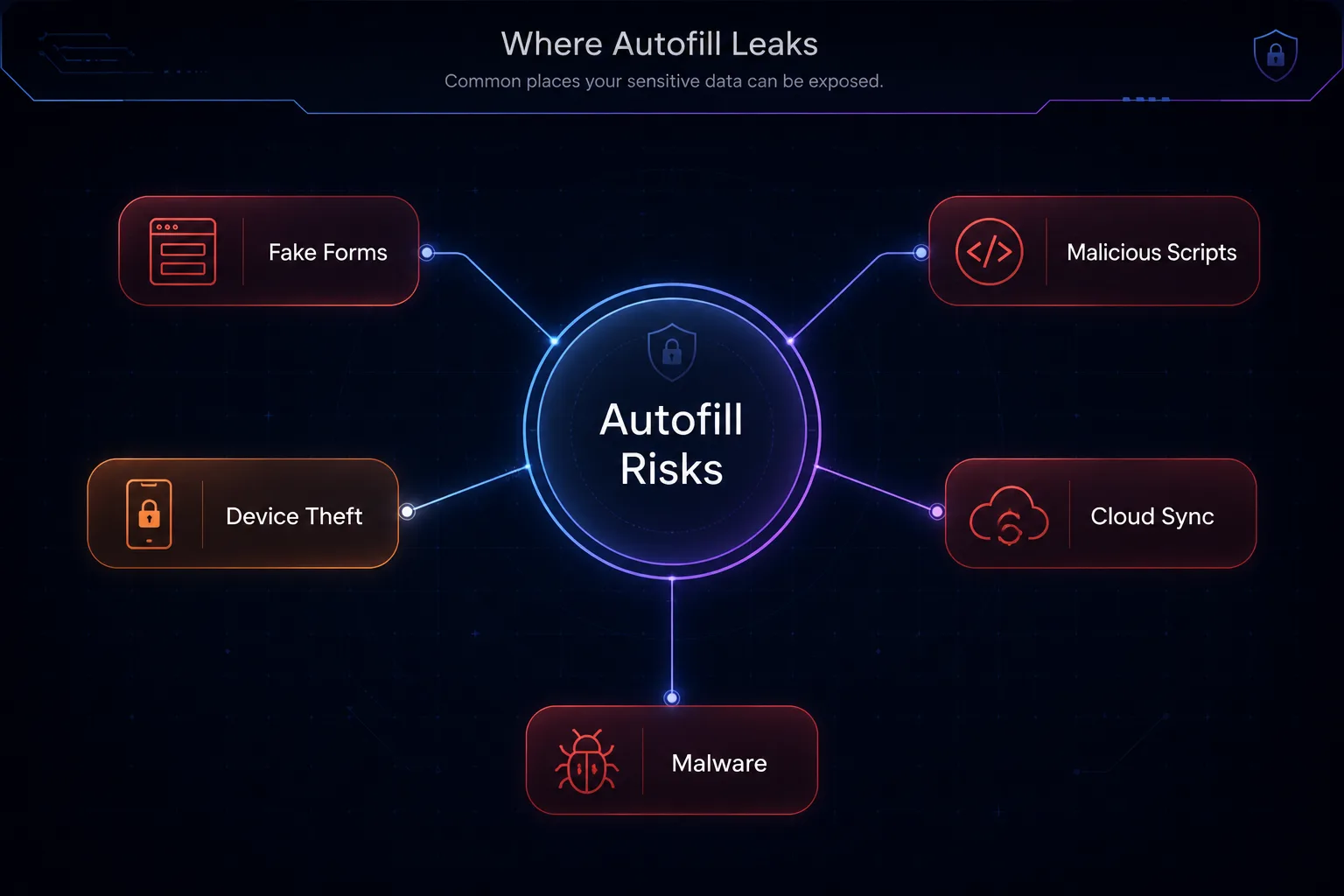
1Fake and Hidden Forms
The sneakiest attack is the autofill phishing trick. A malicious page shows you one harmless field, like an email box, but hides extra fields off-screen. When your browser autofills the visible one, it can populate the hidden ones too, quietly handing over your name, phone, address, or more without you seeing it happen.
2Malicious Scripts
Compromised or shady websites can run scripts that read what autofill drops into a page. If a site is infected or an ad network is serving malicious code, form data your browser fills can be scraped the moment it appears, which is one reason autofilling on untrusted sites is risky.
3Device Theft and Shared Computers
The lowest-tech risk is the most common. A stolen phone or laptop, or a shared family or work computer, gives anyone with access your saved logins and cards in a couple of clicks. If your device isn't encrypted and locked, autofill is an open vault.
4Cloud Sync Exposure
Browsers sync autofill data across devices through your account. That's convenient, but it means a breach of that single account, or a weak password on it, can expose your saved data everywhere at once. The sync is only as safe as the account securing it.
5Info-Stealer Malware
A whole class of malware exists specifically to harvest browser-stored passwords and cards. These info-stealers know exactly where browsers keep autofill data and can extract it in seconds if they land on your machine, which makes locally stored credentials a prime target.
Browser Autofill vs a Dedicated Password Manager
Here's the honest core of this guide: for anything truly sensitive, a dedicated password manager is meaningfully safer than your browser's built-in autofill. It's the single biggest upgrade you can make.
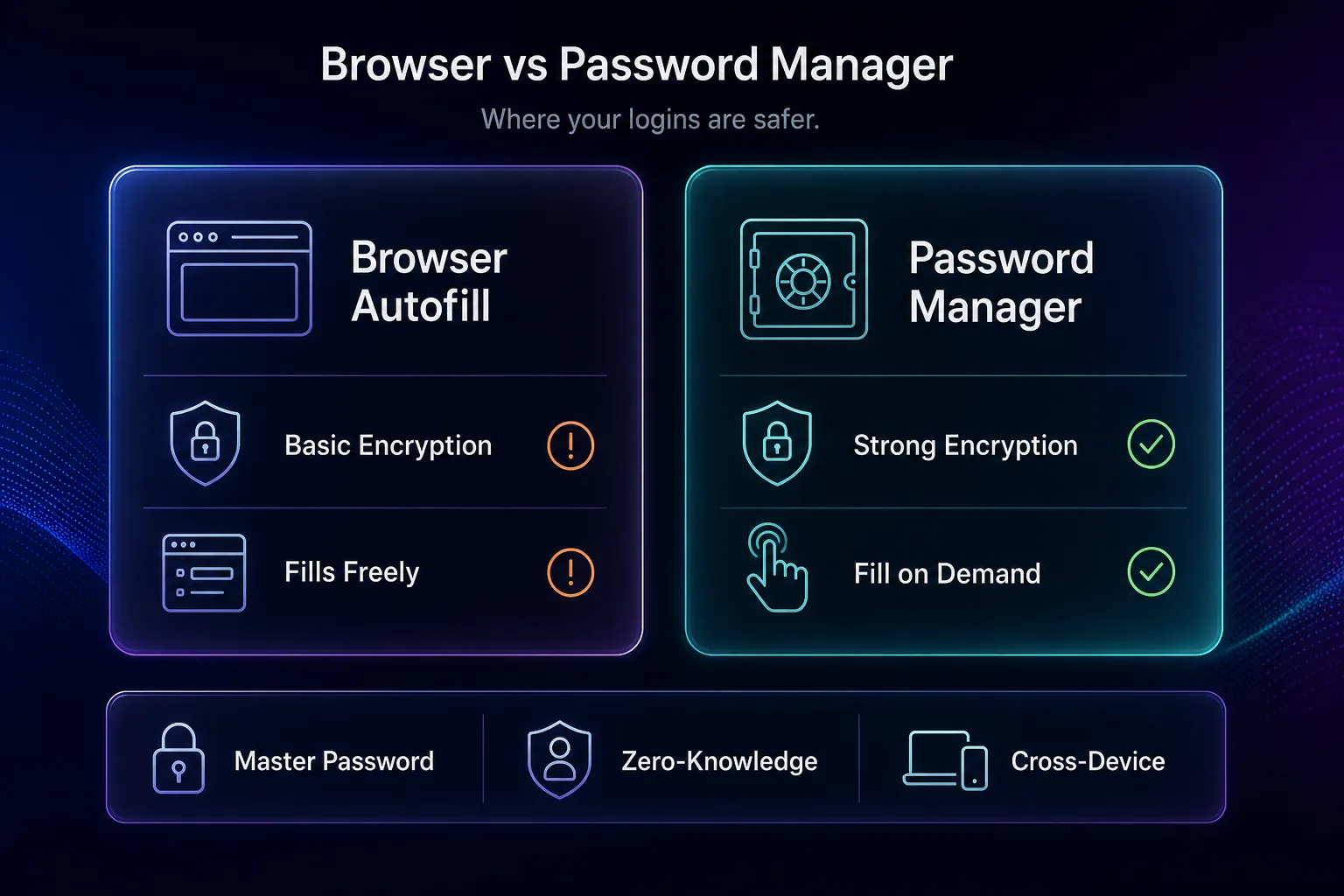
| Factor | Browser Autofill | Password Manager |
|---|---|---|
| Encryption | Basic, tied to your device or account login | Strong, zero-knowledge behind a master password |
| Filling behavior | Often fills automatically | Fills on demand, only after you unlock it |
| Phishing resistance | Weaker, can be tricked by look-alike fields | Stronger, matches the exact domain before filling |
| Cross-device | Locked to that browser's ecosystem | Works across browsers, apps, and devices |
| Extra protection | Limited | Breach alerts, 2FA, secure notes, sharing |
A password manager keeps everything encrypted behind a master password only you know, fills credentials only when you unlock it, and refuses to fill on a domain that doesn't match, which neutralizes the fake-form trick. If you do one thing from this guide, move your passwords and cards into a reputable password manager and let the browser handle nothing sensitive.
How to Secure Your Autofill Data
Whether you switch to a password manager or keep using the browser carefully, these steps lock down your autofill exposure. Do them in order.
Move sensitive data to a password manager and remove it from the browser, so passwords and cards live in a properly encrypted vault instead. Turn off or limit browser autofill for the categories you don't want filled automatically (steps per browser below). Encrypt your device and lock it with a strong passcode and biometrics, since device encryption is what stops a thief from reading saved data. Require authentication before autofill where your browser or OS allows it, so a fingerprint or PIN is needed before a card or password is filled.
Then clean out what's already saved: delete stored cards and passwords you don't need, and clear autofill data entirely before selling, returning, or sharing a device. Our guide on how to clear your browsing data walks through wiping saved information properly. Finally, keep the browser updated, because autofill security fixes ship in updates you don't want to skip.
How to Turn Off or Limit Autofill in Each Browser
If you'd rather disable autofill for sensitive categories, here's where the settings live in each major browser. You can turn off passwords, payments, and addresses independently.
1Google Chrome
Open Settings → Autofill and passwords. From there, open Google Password Manager, Payment methods, and Addresses in turn, and switch off "Offer to save passwords," "Save and fill payment methods," and "Save and fill addresses." Chrome's own autofill help page covers each toggle in detail.
2Mozilla Firefox
Go to Settings → Privacy & Security. Under "Forms and Autofill," uncheck autofill for addresses and payment methods. Under "Logins and Passwords," uncheck "Ask to save logins and passwords for websites" to stop it saving new credentials.
3Safari
Open Safari → Settings → AutoFill (on Mac) or the AutoFill section in iOS Settings. Uncheck the categories you want off: contact info, usernames and passwords, credit cards, and other forms. On iPhone, passwords are managed under Settings → Passwords with Face ID or Touch ID protection.
4Microsoft Edge
Head to Settings → Profiles, then open Personal info, Payment info, and Passwords separately. Toggle off "Save and fill" for each category you don't want Edge handling automatically.
Extra Layers: Public Wi-Fi, Phishing, and Device Hygiene
Securing the stored data is most of the battle, but a few habits protect it in transit and in the moment. On untrusted networks, especially public Wi-Fi, avoid logging into sensitive accounts unless you're on a VPN, since an encrypted tunnel keeps anyone on the same network from capturing what you submit. A reputable VPN is a cheap, worthwhile layer for anyone who works on the move.
Stay alert to phishing, too. The fake-form trick only works if you autofill on a page you shouldn't trust, so slow down before filling anything on a link you arrived at from an email or ad. And practice basic device hygiene: full-disk encryption, a short auto-lock timer, biometrics, and remote wipe enabled. Pairing autofill discipline with the tracker controls in our guide to stopping apps and sites from tracking you covers most of your everyday exposure.
Locking Down Autofill on Your Phone
Most autofill happens on phones, yet mobile settings get ignored. The good news is that phones offer stronger controls than desktops, because both iOS and Android can gate autofill behind biometrics and route it through a proper password manager.
On iPhone, saved logins live in Settings under Passwords, protected by Face ID or Touch ID, so nothing fills without your face or fingerprint. You can set a third-party password manager as the default under Settings → General → AutoFill & Passwords, which replaces iCloud Keychain with a stronger vault. For payment and contact autofill in Safari, open Settings → Safari → AutoFill and switch off the categories you don't want.
On Android, autofill runs through an "autofill service" you pick in Settings, usually under Passwords & accounts or System settings depending on the device. Set your password manager as that service instead of the default, and it will handle logins app-wide with biometric confirmation. You can also manage or clear saved entries in Google Password Manager and disable Chrome's in-app saving separately.
For payments specifically, a mobile wallet with tap-to-pay is safer than browser-saved cards, because it tokenizes the card and confirms each use with biometrics rather than storing the raw number in a browser. Two mobile habits matter most: always require biometrics before autofill, and never save sensitive logins into a shared or work profile you don't fully control. A phone is the device most likely to be lost or handed around, so that biometric gate is what stops a misplaced phone from becoming a stolen identity.
Common Mistakes That Expose Autofill Data
Most autofill leaks come from a handful of habits. Fix these and you close the biggest gaps.
1Saving Cards and Passwords in the Browser by Default
Clicking "save" every time the browser asks quietly builds a huge, lightly protected store of sensitive data. Move that into a password manager and stop letting the browser be your vault for anything that matters.
2Leaving the Device Unencrypted and Unlocked
All the autofill settings in the world mean nothing if a thief can open your unlocked, unencrypted laptop. Turn on full-disk encryption, use a strong passcode, and set a short auto-lock. This is the foundation everything else sits on.
3Autofilling on Untrusted Sites
Letting autofill run on any page you land on invites the hidden-field and malicious-script attacks. Only fill sensitive data on sites you reached deliberately and trust, and be especially wary on pages opened from emails or ads.
4Ignoring Sync Account Security
Your browser sync account is a master key to your autofill data across every device. Protecting it with a weak password and no two-factor authentication undoes everything else. Secure that account as if it guards all your logins, because it does.
5Forgetting to Wipe Old Devices
Selling, returning, or handing down a device without clearing saved passwords and cards leaves your data in a stranger's hands. Always sign out, remove saved autofill data, and factory-reset before a device leaves you.
Frequently Asked Questions
The Bottom Line
Browser autofill trades security for convenience, and the trade is worse than most people realize. It quietly stockpiles your passwords, cards, and personal details behind protection no stronger than being logged into your computer, then hands them out to hidden forms, malicious scripts, and anyone who picks up your unlocked device. The tools to fix it are largely free and already on your devices; the only missing piece is spending ten minutes to switch them on.
The fix is straightforward: move anything sensitive into a dedicated password manager, turn off browser saving for passwords and cards, encrypt and lock your devices, and stay sharp about where you autofill. Add a VPN on public networks and keep your sync account locked down, and you've closed the door most people leave open. A few minutes of setup now beats cleaning up after a stolen identity later.
![The Best Data Extraction APIs to Try in [year]](/_next/image?url=https%3A%2F%2Fproxyhorizon.com%2Fcdn%2Fblog-images%2Fbest-data-extraction-apis-1-mufdevwh.webp&w=3840&q=75)
![Best SERP APIs ([year]): Compared for Accuracy, Pricing & AI](/_next/image?url=https%3A%2F%2Fproxyhorizon.com%2Fcdn%2Fblog-images%2Fbest-serp-apis-1-mufdet7y.webp&w=3840&q=75)
![How to Add an MTProto Proxy to Telegram ([year])](/_next/image?url=https%3A%2F%2Fproxyhorizon.com%2Fcdn%2Fblog-images%2Fhow-to-add-mtproto-proxy-telegram-1-mu9ha99k.webp&w=3840&q=75)