Can Wi-Fi Owners See Your Browsing History? (2026)
Can Wi-Fi owners see your browsing history? What a router owner can and cannot see, how HTTPS protects you, whether incognito helps, and how to hide your browsing.
It’s one of the most common privacy questions people ask: if you connect to someone else’s Wi-Fi, whether it’s your home router, your workplace, a coffee shop, or a friend’s house, can the owner see everything you browse? It’s a fair worry. You’re routing all your internet traffic through their equipment, so it feels like they could be watching every click.
The honest answer is a bit of both. Wi-Fi owners can see more than most people realize, but far less than they fear, and exactly how much depends on the router, whether sites use HTTPS, and whose network it is. A home user with a basic router sees very different things than an employer running enterprise monitoring gear.
This guide breaks it all down: what a Wi-Fi owner can and can’t see, how HTTPS changes the picture, whether incognito mode helps (spoiler: barely), and exactly how to hide your browsing when you need real privacy. Let’s clear up the confusion.
The Short Answer
Yes, a Wi-Fi owner with access to the router’s admin panel can typically see the domains or IP addresses you connect to (like youtube.com or a bank’s website), along with which device connected, when, and how much data it used. What they generally cannot see, thanks to HTTPS encryption, is the specific pages you view, your search terms, messages, passwords, or the actual content of what you do on those sites. So they might know you visited a website, but not what you did there. The big exception is managed work and school networks, which can be set up to see much more.
What a Wi-Fi Owner Can See
When you use someone’s Wi-Fi, their router sits between you and the internet, so certain information passes through it in a readable form. Here’s what an owner with admin access can usually observe.

1The Websites (Domains) You Visit
Through the router’s logs or its DNS requests, the owner can often see the domain names of the sites you connect to, such as facebook.com or a specific news site. They see that you went there, even if not what you did once you arrived.
2Connected Devices and Timestamps
The admin panel lists every device on the network, often by name (like "John’s iPhone"), along with when each connected and disconnected. Your activity is tied to your device, so it isn’t anonymous on their network.
3How Much Data You Use
Routers track bandwidth per device, so an owner can see if you’re streaming heavily or downloading large files, even without knowing exactly what the content is.
4Unencrypted (HTTP) Content
On the rare sites that still use plain HTTP instead of HTTPS, the owner can potentially see the full content, including anything you type. Thankfully the vast majority of the web now uses HTTPS, which shuts this down.
What a Wi-Fi Owner Cannot See
Here’s the reassuring part. Because almost every website today uses HTTPS encryption, a Wi-Fi owner on a normal network cannot see the details of what you actually do. Specifically, they can’t read:
- The specific pages you view within a site (they see youtube.com, not which video)
- Your search terms and what you type into forms
- Your passwords and login details
- The content of your messages, emails, and chats
- Files you upload or download in encrypted form
In other words, on a standard Wi-Fi network the owner gets the "envelope" but not the "letter" inside. They can see who you’re talking to, but not what you’re saying.
How HTTPS Protects You
HTTPS is the reason your privacy holds up even on someone else’s network. When you see the padlock in your browser’s address bar, it means the connection between your device and the website is encrypted end to end. Anyone in between, including the Wi-Fi owner, sees only scrambled data plus the domain name, not the readable content.
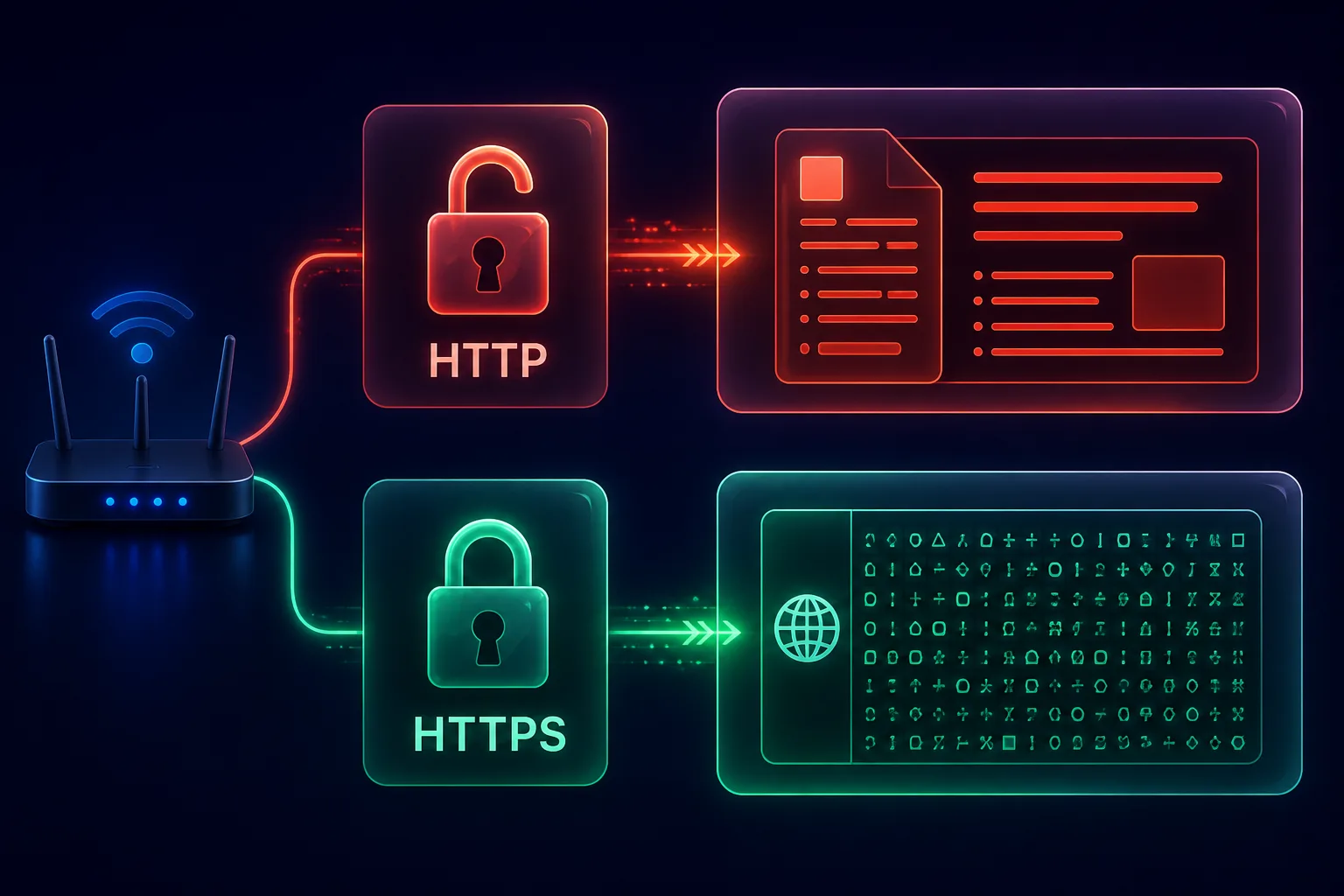
The catch is that the domain itself is still usually visible, because your device has to ask which server to connect to. So HTTPS hides what you do on a site but not always which site you visited. To hide the domain too, you need a VPN or encrypted DNS, which we cover below.
Where Wi-Fi Owners Actually Look: Router Logs
Most of what a Wi-Fi owner can see lives in the router’s admin panel, accessed through a browser using the router’s IP address and admin password. From there, depending on the model, they may view connected devices, DHCP lists, and sometimes a log of visited domains or blocked sites. It’s worth knowing that many basic home routers keep only minimal logs by default, and some overwrite them quickly, so a casual owner may not have a detailed browsing record at all.
That said, the capability exists, and anyone who deliberately enables logging or installs monitoring firmware can build a fuller picture. Assume that on any network you don’t control, the owner could see the domains you visit, and act accordingly.
Does It Matter Whose Wi-Fi It Is?
Absolutely. The type of network changes the stakes significantly.
1Home Wi-Fi
On your own home network, you are the owner, so the practical concern is other people with the admin password, or your ISP, which can see the domains you visit regardless of the router. A family member with router access could check logs, but they still won’t see HTTPS content.
2Public Wi-Fi (Cafes, Airports, Hotels)
Public networks are run by third parties and shared with strangers, which raises the risk of snooping. HTTPS still protects your content, but you’re trusting an unknown operator. This is why a VPN is strongly recommended here, as we explain in our guides to staying safe on airport Wi-Fi and hotel Wi-Fi.
3Work and School Networks
This is the big exception. Employers and schools often run advanced monitoring, content filters, and proxies, and on managed devices they may install a root certificate that lets them decrypt and inspect even HTTPS traffic. On a company laptop or school Chromebook, assume they can potentially see much more, including page content. They may also block VPNs. Treat work and school networks as monitored by default.
Does Incognito Mode Hide Your History?
This is a huge misconception. Incognito or private browsing mode only stops your browser from saving history, cookies, and form data on your own device. It does absolutely nothing to hide your activity from the Wi-Fi owner, the router, your ISP, or the websites themselves. The router still sees the same domains whether you’re in incognito mode or not. Private mode is for keeping your activity off your local device, not off the network. The same limitation applies to your provider, as we explain in can your ISP see incognito browsing.
Can They See History You Already Deleted?
Deleting your browser history removes the record from your device only. It has no effect on the router’s logs. If the Wi-Fi owner’s router recorded the domains you visited, clearing your own browsing history won’t erase that separate log on their equipment. The two are completely independent, which is another reason local privacy tools aren’t enough to hide activity from a network owner.
Can Wi-Fi Owners See What You Do on Your Phone?
Your phone is treated exactly like any other device on the network, so the same rules apply. When your phone is connected to someone’s Wi-Fi, the owner can see the domains your apps and browser connect to, your device name, and your data usage, but not the encrypted content, because nearly all modern apps use HTTPS. They can tell you opened a social or messaging app, but they can’t read your messages or see the specific posts you viewed.
One important detail: this only applies while you’re on their Wi-Fi. The moment you switch to mobile data (4G or 5G), your traffic goes through your carrier instead, and the Wi-Fi owner sees nothing at all. If you’re worried about a particular network, turning off Wi-Fi and using cellular data is a simple way to stay off it entirely.
How to Hide Your Browsing From the Wi-Fi Owner
If you want genuine privacy on a network you don’t control, here are your options, from strongest to supplementary.
1Use a VPN (the Best Option)
A VPN encrypts all your traffic, including the domain names, and routes it through an external server. The Wi-Fi owner then sees only a single encrypted connection to the VPN, with no visibility into which sites you visit or what you do. This is by far the most effective way to hide your browsing from a router owner, ISP, or public network. Learn how it works in our guide on what a VPN is and how it works.
2Stick to HTTPS Sites
Always look for the padlock. HTTPS won’t hide the domain, but it keeps your actual activity, logins, and content private from anyone on the network. Modern browsers now warn you before loading insecure HTTP pages.
3Use Encrypted DNS
Enabling DNS over HTTPS (DoH) in your browser or device stops the network from reading your DNS queries, hiding the domains you look up. It’s a useful layer, though a full VPN is more comprehensive because it also hides the connection itself.
4Consider Tor for Maximum Anonymity
For the highest anonymity, the Tor browser routes your traffic through multiple encrypted relays. It’s slower than a VPN and overkill for everyday use, but powerful for sensitive situations. See our comparison of VPN vs Tor for privacy to decide which fits your needs.
Best VPNs to Hide Your Browsing
A reliable, no-logs VPN is the single best tool for keeping your browsing private on any Wi-Fi network. These three are our top recommendations.

NordVPN is the best all-round choice, combining fast NordLynx speeds, an independently audited no-logs policy, and strong encryption that hides your browsing from any network owner or ISP. Its Threat Protection also blocks trackers and malicious sites, making it a complete privacy package for home and public Wi-Fi alike.

Surfshark offers premium privacy at a budget price, with unlimited simultaneous connections so you can protect your phone, laptop, and every device on one plan. Fast WireGuard speeds and a clean no-logs record make it ideal for anyone who wants strong protection across all their devices without overspending.

Proton VPN is the privacy purist’s pick, with Swiss jurisdiction, open-source audited apps, and a genuinely usable free tier. If verifiable privacy or a no-cost option matters most to you, Proton VPN is the most transparent way to hide your browsing. Compare more options in our best VPN services for privacy guide or the full VPN directory.
A Note on Trusting Your VPN Provider
A VPN is the strongest way to hide your browsing from a Wi-Fi owner, but it helps to understand what it actually does: it shifts your trust from the network owner to the VPN provider. Instead of the router seeing your domains, your VPN could, which is why the provider’s no-logs policy matters so much. Choose one with an independently audited no-logs record, so there’s verified proof it isn’t storing your activity. Free, unknown VPNs sometimes monetize your data, which defeats the whole purpose. Our guide on whether governments can track VPN users digs deeper into how much protection a trustworthy VPN really provides.
Frequently Asked Questions
The Bottom Line
So, can Wi-Fi owners see your browsing history? They can see the domains you visit, your devices, timestamps, and data usage through the router, but thanks to HTTPS they can’t see the specific pages, searches, messages, or content behind those sites, on a normal network. Incognito mode won’t help, and deleting your history only clears your own device, not the router’s logs. The major exception is managed work and school networks, which can be built to see far more.
If you want real privacy on any network you don’t control, a VPN is the answer: it encrypts everything, including the domains, so the owner sees nothing but scrambled data. For most people, NordVPN is the best all-round choice, with Surfshark for value and Proton VPN for privacy-first users and a free tier. To go deeper on why this matters, read why online privacy matters, or compare providers in our full VPN directory.