How to Use Proxies in Telegram (Step-by-Step 2026)
A step-by-step guide to using proxies in Telegram: SOCKS5 vs MTProto, setup on Android, iPhone, and desktop, the best proxy providers, and safety tips.

Telegram is one of the few big apps that builds proxy support right into its settings, no third-party tools required. That's not an accident. With close to a billion monthly users (Telegram's own figure) and a habit of getting blocked by governments, the app was designed so people could keep messaging even when their country tries to pull the plug. Learning how to use proxies in Telegram takes about two minutes, and it solves problems ranging from censorship to account safety.
A proxy reroutes your Telegram traffic through another IP address. That hides your real IP from the network you're on, slips past regional blocks, and lets you run multiple accounts without them all pointing back to the same connection. The best part is that Telegram supports two proxy types natively, SOCKS5 and MTProto, so you're not fighting the app to make it work.
This guide walks through why you'd want a proxy, which of the two protocols to pick, the exact setup steps on Android, iPhone, and desktop, and the providers worth trusting. If you'd rather skip straight to picks, our roundup of the best proxies for Telegram ranks them; this is the how-to.
Why Bother Routing Telegram Through a Proxy
There are four honest reasons, and only one of them is about hiding. The first is access: Telegram is blocked or throttled in several countries, and a proxy is the built-in way back in. The second is privacy, since a proxy keeps the network you're on, whether that's an office, a campus, or a café, from seeing your real IP and what you connect to.
The third reason is account management. If you run more than one Telegram account, logging them all in from a single home IP is a fast way to get them linked and flagged. Giving each account its own residential or mobile IP keeps them separate. The fourth is speed and stability: when an ISP throttles Telegram specifically, routing around it can genuinely restore performance. A proxy isn't a cure-all, but for these four jobs it's the right tool.
SOCKS5 vs MTProto: Which Telegram Proxy to Use
Telegram accepts two proxy protocols, and the difference actually matters. SOCKS5 is the universal standard: it works with any app, not just Telegram, and almost every proxy provider sells it. MTProto is Telegram's own protocol, and its trick is obfuscation, it disguises the traffic so networks can't easily tell you're using a proxy at all. That makes MTProto the stronger choice in places that actively hunt for and block proxy connections.
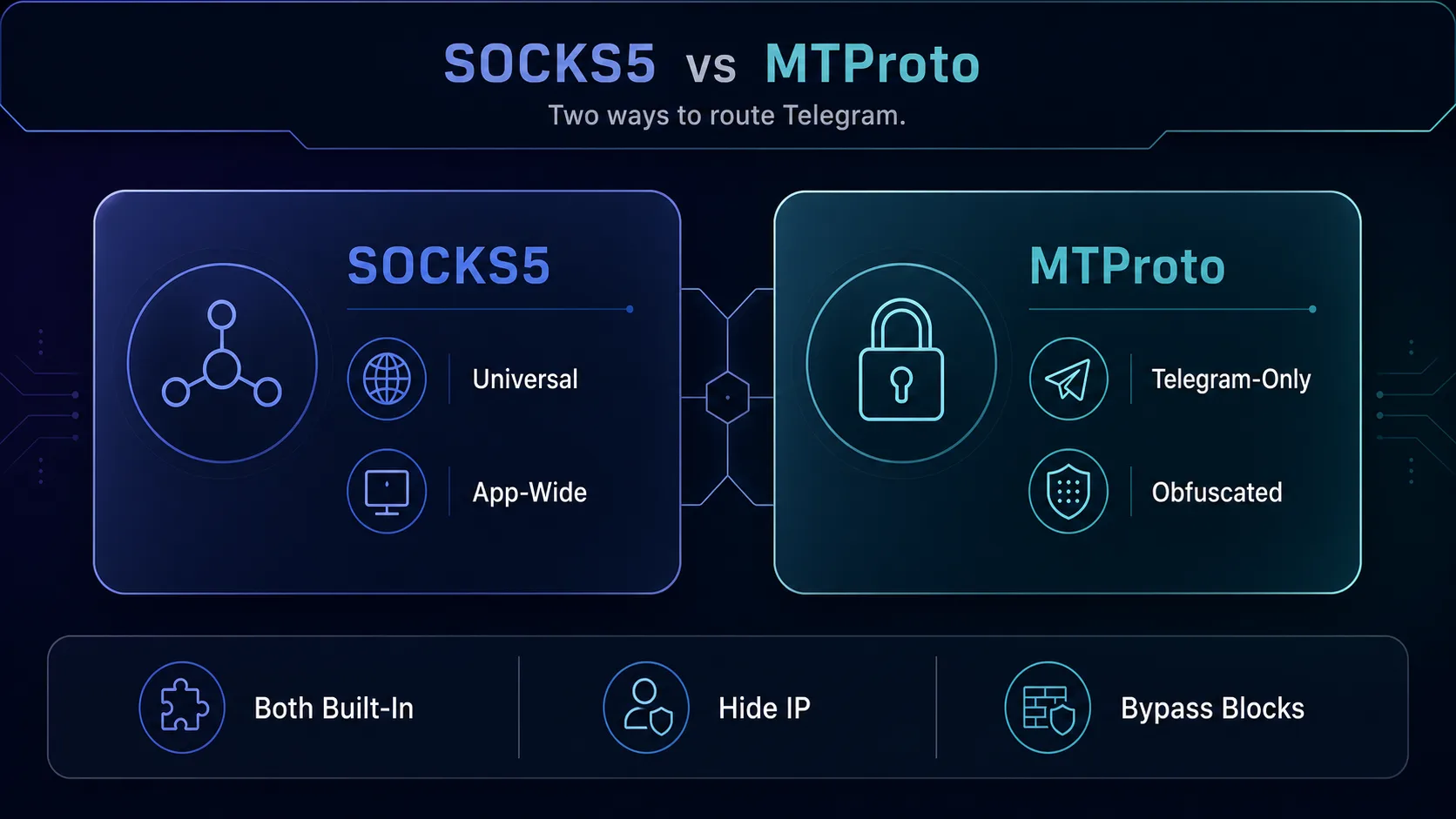
| Feature | SOCKS5 | MTProto |
|---|---|---|
| Built into Telegram | Yes | Yes |
| Works with other apps | Yes, any app | No, Telegram only |
| Hides that you're using a proxy | No | Yes (obfuscated) |
| Sold by most proxy providers | Yes | Rarely (often self-hosted) |
| Best for | Privacy, geo-targeting, account IPs | Beating aggressive proxy blocks |
Our take: for everyday privacy, multi-accounting, and geo-targeting, use a SOCKS5 residential or mobile proxy from a real provider. Reach for MTProto only when you're somewhere that blocks ordinary proxies and you need the obfuscation. Most readers want SOCKS5, and it pairs with the SOCKS5 proxies you already understand.
What Kind of Proxy Works Best for Telegram
The protocol is how you connect; the proxy type is what you connect through, and it decides how trustworthy you look. Mobile and residential IPs look like real people, which is exactly what you want if account safety matters. Datacenter IPs are faster and cheaper but easier for Telegram to flag, and free public proxies are a genuine risk.
| Proxy type | IP looks like | Best Telegram use | Watch out for |
|---|---|---|---|
| Mobile (4G/5G) | Real carrier IP | Multi-accounting, avoiding bans | The priciest option |
| Residential | Real home ISP IP | Privacy, geo-targeting, account safety | Billed per GB |
| Datacenter | Cloud server IP | Speed, casual unblocking | Easier to flag or ban |
| Free / public | Unknown, shared | Nothing important | Slow, unsafe, may log you |
For serious multi-account work, mobile proxies are the gold standard because carrier IPs are shared by thousands of real users and rarely banned. For general privacy and unblocking, residential is the practical sweet spot. Save datacenter for casual, low-stakes use, and skip free proxies entirely.
How to Set Up a Proxy in Telegram
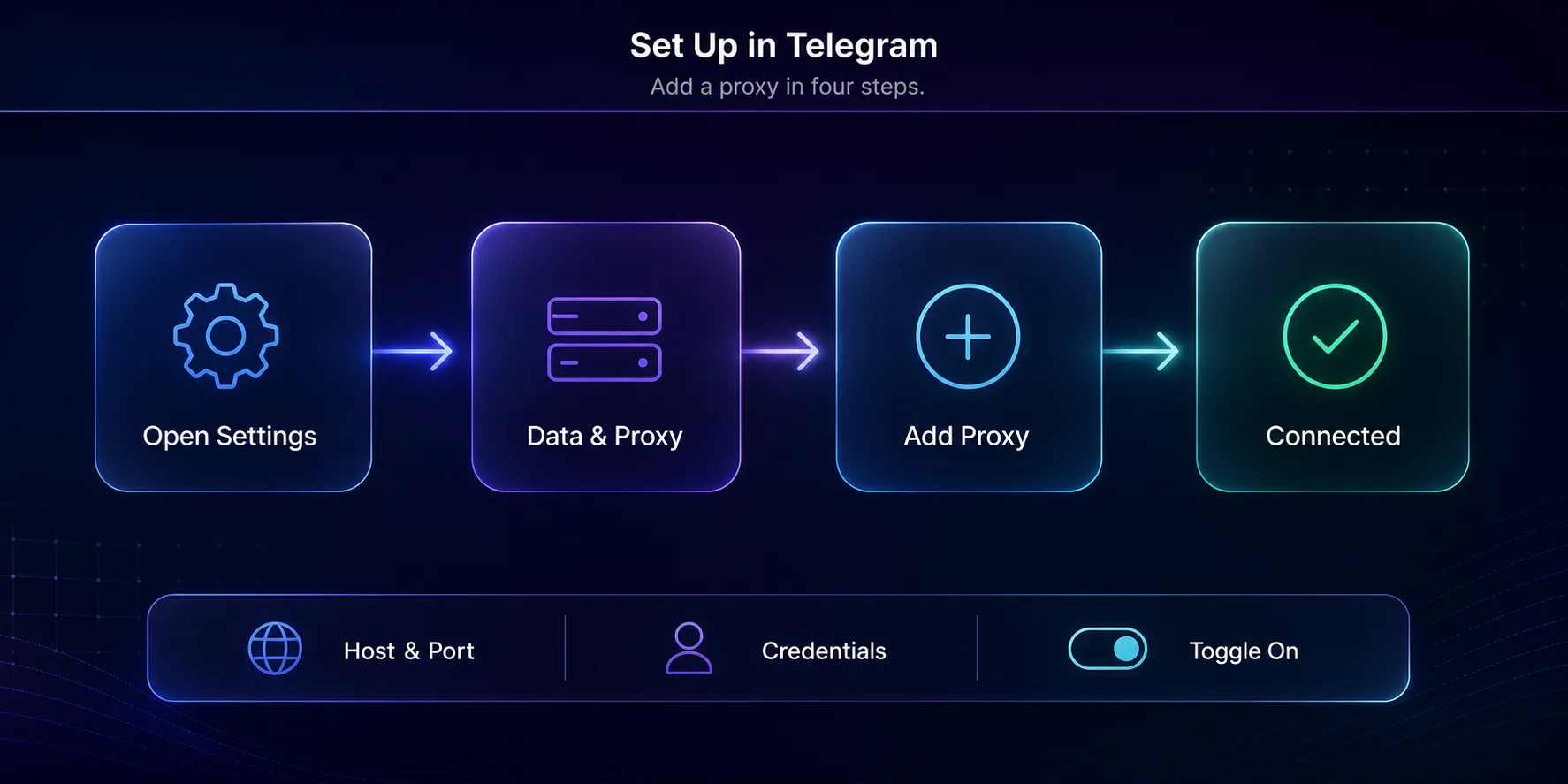
The flow is nearly identical on every platform: open settings, find the proxy screen, add your server details, and toggle it on. You'll need four things from your provider: the server address (host), the port, and either a username and password for SOCKS5 or a secret for MTProto.
1On Android
Open Settings, tap Data and Storage, then scroll to Proxy Settings. Turn on Use Proxy, tap Add Proxy, and choose SOCKS5 or MTProto. Enter the server, port, and your username and password (or the secret for MTProto), then save. Flip the toggle and Telegram routes through your proxy immediately; a small shield icon confirms it's active.
2On iPhone
The path is almost the same. Go to Settings, then Data and Storage, then Proxy. Tap Add Proxy, pick your protocol, and fill in the host, port, and credentials. Tap done and enable it. iOS remembers the proxy, so you can switch it on and off from that screen without re-entering everything.
3On Desktop
In Telegram Desktop, open Settings, then Advanced, then Connection type. Choose Use custom proxy, add a SOCKS5 or MTProto entry with your details, and select it. You can store several proxies here and switch between them, which is handy if you juggle different regions or accounts.
One shortcut worth knowing: many providers give you a tg://proxy or t.me/proxy link that fills in every field automatically when you tap it. Only use links from a source you trust, since a malicious one points your traffic wherever its creator wants.
Best Proxies for Telegram in 2026
Telegram rewards clean IPs, so a reputable provider matters more than a bargain. How we picked: we favored providers with genuine residential and mobile pools, reliable SOCKS5 support, precise geo-targeting, and a track record of IPs that don't get flagged. A quick disclosure: some links below are affiliate links and we may earn a commission if you subscribe, which never changes our picks.
1IPRoyal

IPRoyal is the best budget-friendly entry for Telegram. It offers residential and mobile IPs with SOCKS5 support, and its non-expiring traffic model is ideal if your usage is occasional rather than constant. For someone setting up one or two accounts without a big budget, it hits the right balance of price and quality.
The pool is smaller than the enterprise giants and the dashboard keeps things simple rather than advanced. For most personal Telegram use, that simplicity is a feature, not a limitation.
2Decodo

Decodo is the easiest all-rounder to recommend. It pairs a large 115M+ residential pool with clean SOCKS5 access, wide country coverage, and the friendliest setup in this group, which matters when you're pasting host and port into Telegram for the first time. Success rates on account-sensitive tasks are strong.
It isn't the absolute cheapest per gigabyte at tiny volumes, and the Smartproxy rebrand still trips up some searchers. Neither is a real problem. For reliable, no-drama Telegram proxying, Decodo is the default.
3SOAX

SOAX is the pick when location precision is the point. Its clean, well-vetted residential and mobile pools with city-level targeting are perfect for accessing Telegram as if you're in a specific country, or for keeping each account tied to a consistent region. The IP quality shows up as fewer flags.
Costs can rise as you scale, and some controls sit on higher tiers. But for geo-accurate, low-ban Telegram use, SOAX is a strong specialist choice. You can compare all three in our proxy provider directory.
How to Check Your Telegram Proxy Is Working
Setting a proxy and assuming it works is how people quietly stay unprotected for days. Take thirty seconds to confirm it's live. The quickest signal is the small shield or proxy icon Telegram shows near the top of your chat list when a proxy is active; if it's missing, the toggle didn't take and you're still on your normal connection.
For a real check, use the proxy screen itself. Telegram pings every saved proxy and shows its status and latency, so a "Connected" or "Available" label with a response time means the server is reachable, while "Unavailable" means the details are wrong or the server is down. Then send a message or open a channel to confirm traffic actually flows, not just that the proxy pings.
Keep an eye on speed too. A good residential or mobile proxy adds only mild latency; if messages and media crawl, the server is probably overloaded or too far away, and switching to a closer one usually fixes it. If the connection keeps dropping, your plan may be out of data or the IP may have rotated, so check your provider dashboard before blaming Telegram.
Common Mistakes When Using Telegram Proxies
Most Telegram proxy headaches come from a few avoidable errors. Steer around these and setup just works.
1Using Free Public Proxies
Free Telegram proxy lists are tempting and almost always a bad idea. They're overcrowded, painfully slow, and some are run specifically to snoop on the traffic passing through them. For anything involving your account or private chats, a cheap paid proxy is worth every cent.
2Sharing One IP Across Many Accounts
Running several accounts through a single IP is the classic way to get them linked and banned together. Telegram notices when a dozen accounts share one address. Give each account its own clean mobile or residential IP if account separation is the goal.
3Picking Datacenter IPs for Account Work
Datacenter proxies are fast and cheap, but their IP ranges are easy to identify, so Telegram treats them with suspicion for account actions. They're fine for casual unblocking; for logins and multi-accounting, use residential or mobile instead.
4Ignoring the Wrong-Region Trap
Connecting an account through a proxy in a country far from where it usually logs in can itself look suspicious. Keep each account's proxy location consistent, and match it to where the account normally operates rather than hopping regions.
5Entering the Wrong Details
A proxy that won't connect is usually a typo: wrong port, a mismatched protocol, or credentials pasted with a trailing space. Double-check the host and port, confirm you picked SOCKS5 versus MTProto correctly, and re-copy the password before assuming the proxy is dead.
Tips for a Safe, Fast Telegram Proxy Setup
A few habits keep your setup reliable and your accounts healthy.
- Prefer SOCKS5 residential or mobile for everyday use; keep MTProto for places that block ordinary proxies.
- One clean IP per account if you manage more than one, and keep that pairing consistent.
- Test the connection right after setup and check your IP address to confirm the proxy is actually active.
- Only tap proxy links from trusted sources, never random ones shared in public channels.
- Keep credentials private, and rotate them if you ever suspect a proxy has been shared or leaked.
Done right, a Telegram proxy fades into the background, you connect once and forget it's there. The goal is quiet reliability, not a constant fight with settings. For the wider context on how proxies route your traffic, our primer on what proxies are fills in the fundamentals.
On Android specifically, the menu paths and the settings that break proxies are covered in our Telegram proxy setup guide for Android. If you have an MTProto link, see how to add an MTProto proxy.
Frequently Asked Questions
The Bottom Line
Telegram makes proxies genuinely easy: pick your protocol, paste in four details, and toggle it on. Choose SOCKS5 with a residential or mobile IP for everyday privacy and account work, and keep MTProto in your back pocket for networks that fight ordinary proxies. The provider you choose matters more than any setting, because clean IPs are what keep you connected and unflagged.
If you want a safe starting point, IPRoyal is the budget-friendly entry, Decodo is the easiest all-rounder, and SOAX wins on location precision. Set one up, confirm the shield icon is on, and compare the full shortlist in our proxy provider directory before you commit to a plan.
Keep Reading
More articles you might enjoy