How to Set Up a Proxy on iPhone and Android (2026 Guide)
Set up a proxy on iPhone and Android in a few taps: where the Wi-Fi proxy setting hides, manual vs PAC setup, proxy logins, which apps ignore it, and the limits nobody mentions.
You paste a proxy into your phone’s Wi-Fi settings, open Safari or Chrome, and your IP looks exactly the same.
Or every page suddenly fails. The proxy usually isn’t broken. Phones just handle proxies differently from desktops, and the setting is buried where few people look.
This guide shows you how to set up a proxy on iPhone and Android step by step, using the manual and PAC options each system offers. You’ll also learn how proxy logins work on each platform, which apps quietly ignore the setting, and what to do when you need a proxy on mobile data.
- Phone proxy settings live inside each Wi-Fi network, not the whole device.
- iPhone: Settings, Wi-Fi, info button, Configure Proxy, Manual.
- Android: network, Edit, Advanced options, Proxy, Manual.
- Only iPhone has a login field. Android relies on the browser prompt.
- No mobile data, no SOCKS5, and some apps ignore the setting.
Where Do Proxy Settings Live on a Phone?
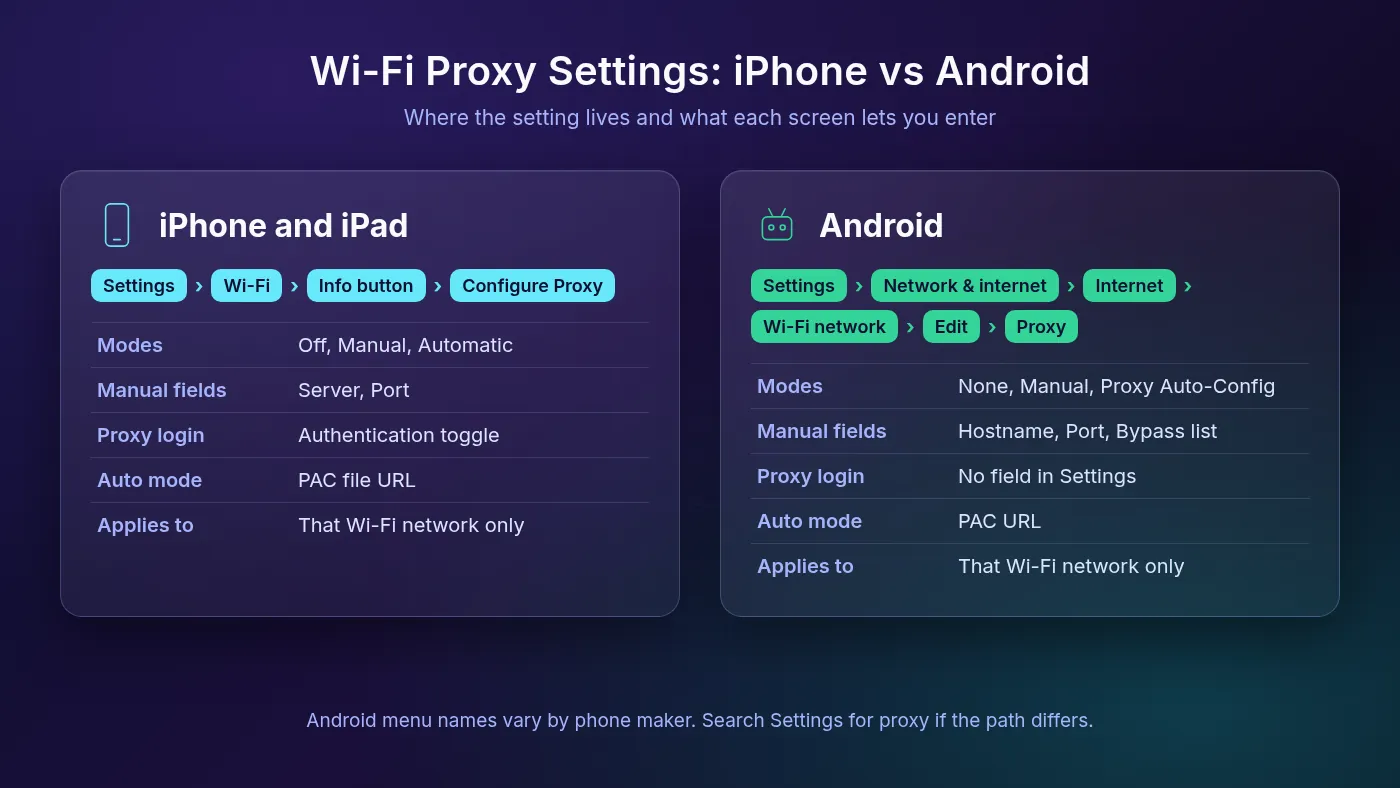
On both iPhone and Android, the built-in proxy setting belongs to a single Wi-Fi network, not to the whole phone. You set it inside that network’s details, and it only applies while you’re connected to it.
That one fact explains most “my proxy stopped working” moments. Walk into a café, join a different network, or drop to 4G, and your traffic goes direct again.
Before you start, grab four details from your provider’s dashboard: the proxy host, the HTTP port, and a username and password if the plan uses them. If you’re unsure which proxy type you bought, our guide to types of proxies explains the differences.
Common mistake: using the SOCKS5 port. The phone settings expect an HTTP proxy, so pick the HTTP port your provider lists. The two protocols aren’t interchangeable, and the wrong port simply fails to connect.
How to Set Up a Proxy on iPhone and iPad
Apple’s iPhone User Guide places the option in the connected network’s settings, next to DNS. The same screen exists on iPad.
- Open the Settings app and tap Wi-Fi.
- Tap the info button (the circled i) next to the network you’re connected to.
- Scroll to the bottom. Under HTTP Proxy, tap Configure Proxy.
- Choose Manual.
- Enter the proxy host in Server and the number in Port.
- If the proxy needs a login, turn on Authentication and fill in the username and password.
- Tap Save.
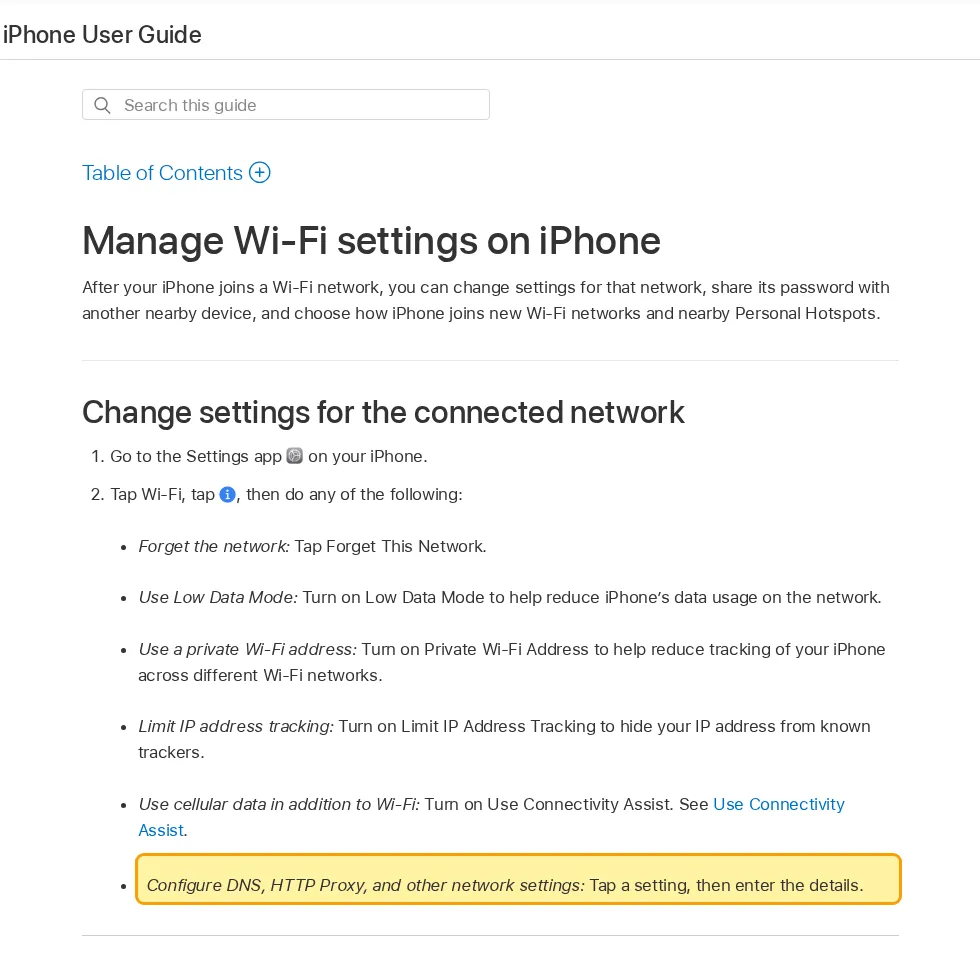
That’s it. You’ll find the source steps in Apple’s guide to managing Wi-Fi settings on iPhone.
Real-world tip: if your provider string looks like gate.example.com:7000, the part before the colon goes in Server and the number after it goes in Port. Don’t type http:// in front.
1Using a PAC File on iPhone (Automatic)
The Automatic option takes a URL instead of a server and port. That URL points to a PAC (proxy auto-config) file, a small script that decides which proxy each site should use.
You’ll mostly see this on school and company networks. Most commercial proxy plans give you a host and port, so stick with Manual unless someone handed you a .pac address.
One limit to know: the Automatic screen has no login fields. If your proxy needs a username and password, Manual is the only built-in way to supply them.
2Setting a Proxy During iPhone Setup
Some office networks block everything until a proxy is set, which is a problem on a brand-new phone. Apple covers this in its support note on advanced network settings in iOS Setup Assistant.
On the Choose a Wi-Fi Network screen, press the Home button, or hold the Side button for 2 seconds. Tap Wi-Fi Settings, then the info button next to your network, and you can set an HTTP proxy before setup continues.
How to Set Up a Proxy on Android
Android’s menus vary more, because Samsung, Xiaomi and other phone makers rename things. The steps below follow Google’s layout on Android 12 and later, described in Google’s help page on advanced network settings.
- Open Settings and tap Network & internet, then Internet.
- Tap the Wi-Fi network you’re connected to (or the gear icon beside it).
- Tap the Edit (pencil) icon and expand Advanced options.
- Under Proxy, change None to Manual.
- Enter the host in Proxy hostname and the number in Proxy port.
- Optionally, list sites to skip in Bypass proxy for, separated by commas.
- Tap Save.
Those field names come straight from the Android Open Source Project’s Settings app, which offers three proxy modes: None, Manual and Proxy Auto-Config. Choose the last one and Android asks for a PAC URL instead.
Can’t find the menu? Search Settings for “proxy”. On Xiaomi, for example, the official support steps go through Wi-Fi, the network, then Proxy. Xiaomi also says to disconnect and reconnect to the Wi-Fi network so the change takes effect. That’s a good habit on any Android phone.
Real-world tip: use the bypass list for things that should stay local, like your router’s admin page. Android expects a comma-separated list of domains, and its ProxyInfo docs show wildcards such as *.example.com for whole domains. Keep the list short, because every entry leaves from your real IP.
1What About the Proxy Username and Password?
Android’s Wi-Fi proxy screen has no username or password fields. The Settings app only offers hostname, port, bypass list and PAC URL.
So where does the login go? In Chrome, the browser asks. Chromium’s proxy documentation says Chrome never uses credentials embedded in proxy settings and handles proxy sign-in through its normal login flow. You’ll see a sign-in prompt the first time a page loads through the proxy.
The cleaner fix is IP allowlisting, if your provider supports it. But here’s the catch on mobile: your phone’s public IP changes between networks, so an allowlist only works on the Wi-Fi network you added. Our guide to proxy authentication methods compares both options.
Which Apps Actually Use the Phone’s Proxy?

The phone’s proxy is a suggestion, not a tunnel. Apps that read the system setting use it. Apps that don’t simply connect directly.
Android says this in its own Settings app. The Android Open Source Project’s warning text reads: “The HTTP proxy is used by the browser but may not be used by the other apps.”
The developer docs explain why. Android’s ProxyInfo reference says the built-in Java URLConnection and Apache’s HttpClient pick up the proxy automatically, while other HTTP stacks have to read it themselves. Plenty of apps never do.
Apple’s side has similar gaps. Its deployment guide on content filtering notes that some apps, such as FaceTime, don’t use HTTP connections, so an HTTP proxy can’t route them. Apple services also stop any connection that uses HTTPS interception.
| Traffic | Follows the Wi-Fi proxy? | Notes |
|---|---|---|
| Safari on iPhone | Yes | Uses the system HTTP proxy |
| Chrome on Android | Yes | Prompts for proxy logins |
| Apps using standard HTTP libraries | Usually | Depends on how the app was built |
| Apps with custom networking | Often not | May connect directly |
| Calls and non-HTTP traffic | No | Apple names FaceTime as an example |
| Mobile data | No | The Wi-Fi proxy doesn’t apply |
Our take: use the Wi-Fi proxy for browsing, geo-checks and testing. Don’t assume it covers every app on the phone.
App-Level Proxy Options (When Settings Aren’t Enough)
When the system setting falls short, the proxy has to live somewhere else. You have three realistic routes.
1Apps With Their Own Proxy Settings
Some apps accept a proxy directly, including SOCKS5 with a login. Telegram is the classic case. We walk through it in our guide to setting up a proxy in Telegram on Android.
This is often the best option when you only care about one app. It works on Wi-Fi and mobile data alike.
2Proxy Client Apps That Use a VPN Profile
To route other apps or cellular traffic, many people use a proxy client that installs a VPN configuration. On Android, these apps build on the system’s VpnService, which can route the whole device or only selected apps.
Even this has limits. Android’s VpnService documentation says an HTTP proxy attached to a VPN “is only a recommendation and it is possible that some apps will ignore it.” Clients that capture all traffic at the packet level are a different design.
Warning: a VPN-profile app can see everything you route through it. Install only clients you trust, from the official app store.
3Managed Devices (Global HTTP Proxy)
Companies and schools can push a proxy that covers every network. Apple’s Global HTTP Proxy payload supports manual or PAC setup, and Apple says it applies across Wi-Fi, mobile data and Ethernet.
The catch is that iPhone and iPad must be supervised, which means organization-owned and enrolled in device management. It isn’t an option for a personal phone. Android work devices can get an admin-set global proxy too, and Settings flags it as “Global HTTP proxy set”.
Limits of Mobile OS Proxying
Here’s a quick summary of what the built-in settings can’t do, so you don’t lose an hour troubleshooting by design.
- No proxy on mobile data. Both systems tie the setting to a Wi-Fi network. Android does have Proxy fields on its Access Point Names screen, but those belong to your carrier’s configuration, so leave them alone.
- Per-network, not global. Set it again on every Wi-Fi network you use.
- HTTP only. Neither Settings screen takes a SOCKS5 proxy.
- Logins are limited. iPhone supports a login in Manual mode only. Android relies on the browser prompt.
- Apps can opt out. The setting guides apps that ask for it and nothing more.
- Your IP isn’t the only signal. Sites can still spot proxy traffic through other clues, which is why mobile proxies with real carrier IPs exist.
Need a proxy on your laptop too? We cover the desktop side in setting up a proxy server on macOS and setting up a proxy on Windows 11.
How to Check the Proxy Is Working
Saving the setting proves nothing. The test is the IP address a website sees.
- Note your real IP. With the proxy off, open our IP address checker in the browser and note the IP and location.
- Turn the proxy on, then fully close and reopen the browser.
- Reload the checker. The IP should now match your proxy’s exit IP and country.
- Test the app you care about, because the browser passing doesn’t mean every app will.
If pages won’t load at all, check the host and port for typos, then make sure you used the HTTP port. If a login prompt keeps returning, the credentials are wrong or your provider expects IP allowlisting. Our guide to fixing proxy connection failed errors covers the rest.
To turn the proxy off, go back to the same screen and pick Off on iPhone or None on Android, then save.
Frequently Asked Questions
Set It Per Network, Then Verify
Setting up a proxy on iPhone or Android takes a minute once you know it lives inside each Wi-Fi network. Manual suits a paid proxy, and the PAC option suits managed networks.
The limits are the real story: no mobile data, no SOCKS5, and apps that skip the setting entirely.
Our take: use the built-in setting for browsing, an in-app proxy for single apps, and always confirm the IP changed. If you’re still choosing a provider with clean HTTP endpoints, compare options in our proxy directory.
Keep Reading
More articles you might enjoy